Saturday, October 8, 2016

How to Detect the Name and Location Of an Unknown Caller
Have you ever experienced receiving call from an unknown caller before?  So times it hurts when you do really know who is calling you, especially when they keep disturbing you with phone calls from unknown sources. Don't you think you should trace who it is? 

How to Detect the Name and Location Of an Unknown Caller


Today, I bring to you an Android application which call really help you with the key to unlock the secret of that unknown caller disturbing you. This app works perfectly in terms that it shows the name of the unknown number immediately your phone starts ringing, isn't that amazing? This app is called Truecaller.

How Does Truecaller Works 

The name says it all, truecaller is an Android App that detects the true name and location of an unknown caller therefore reducing spam by its ability to;
  • Detect unknown caller ID 
  • Unwrap unknown caller's name
  • Blacklist a particular number
  • Block a particular number from sending you messages too. 
To start using truecaller, follow the below procedures 

1. Download the truecaller app here
2. Setup the App
3. Now to find the name and location of that unknown number, just input the number in the search bar, search and wait till the app unveils the name and location of the caller. 

I hope you don't have any problems finding that unknown caller that keeps disturbing you? Don't forget to drop your feedbacks and keep sharing with your friends. 

Saturday, September 3, 2016

Sharing of Apk Files on Whatsapp Made Easier
Share Apk files on Whatsapp

There has been restrictions on sending an Android App on Whatsapp lately. You can easily transfer documents, Pdfs, Music and even videos but transfer of Apk files has been disallowed. Why can we share documents and can't share apk files?  That's where the trick comes in.

Today I will be giving a tutorial on how to send an Android file format (Apk Files)  on Whatsapp. It's just simple brain arithmetic follow the below procedures.

How To Send Apk Files On Whatsapp 

  • Locate the Apk File you want to share 
  • Rename it to .doc from .apk with Es file explorer 
  • Now Open Whatsapp >>Locate the receiver>>Share the renamed apk file.
  • After the receiver completes the download >> Tell him to change the file format back to .apk and install

You have successfully shared an apk file right on Whatsapp without stress, is that not simple? So people still don't know how to do this. Do them a favour by sharing this tutorial on social media and don't forget to drop comments.

Monday, September 14, 2015

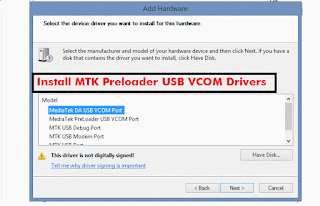
How to install MTK65XX Preloader USB VCom Drivers in Windows


Install MTK65XX Preloader USB Vcom Drivers for SP Flash Tools in Windows.

Generally many users face the problem of VCom drivers are not getting installed for their MediaTek device, we require VCom drivers usually when we flash firmware in our device with SP Flash Tools or any other similar tool.


Today i’m sharing this guide which will help you in installing MTK VCOM Drivers in your PC Manually.
This Guide works with Windows XP, Vista and Windows 7 Based Operating systems

How to install USB Vcom Driver:>

Step 1 :- Firstly Download MTK USB VCOM Drivers for your device model from Here

Step 2 :- Now open Device Manager in your PC by right clicking on My Computer and then click on Manage.

Step 3 :- Next go to Device Manager in that and click on your PC name and then click on Add legacy hardware, see below screenshot.


Step 4 :- Now in Add Hardware Wizard click on Next >> Install the Hardware that i manually select from a list (Advanced) >> Show All Devices >> Next >>Have a Disk >> Browse, Now select the any inf file from where you extracted the downloaded drivers.

Step 5 :- Now click on Next on the wizard to install the drivers and when promoted for security issue just click on install any anyway to finish the driver installation.

Step 6 :- That’s it after clicking on Finish Restart your PC and use your tool with VCOM Drivers.

If you face any problem then please comment below.

Saturday, September 12, 2015

How to reverse infinix hot note pro into stock recovery
As a result of the lollipop update that just rolled out, infinix hot note pro user's have been finding it very difficult to update their phone, due to them unable to flash back to stock recovery. So I decided to bring this quick guide on how to flash back your stock recovery, for those who have installed CWM Recovery.
Now let's get to business
Requirements 
- Mobile Uncle.
- Stock recovery. Download Here
- A little sharp brain

-After downloading the above recovery.Img, move the file to the root of your SD card.
-Now open your mobile uncle,
Go straight to Recovery Update. Click it and you will see the recovery there after d search is finished. Now click the recovery and select flash, after d flash is finished reboot your phone into recovery mode..  Yoola your have successfully install your stock recovery back.

If you are having any problems or questions regarding this, kindly hit the comments box for help. 

Friday, September 11, 2015

How to increase the volume of your Android phone, steps with images

I discovered lately that, most of the mobile user's especially Android users are tired of hearing that low sound coming out of their phones.  
Well am very happy to inform you Android users out there that there is finally a way to increase the volume of your Android phone.... 

Requirements

(1) Mobile Uncle Tools 

(2) A little sharp brain 

STEP 1

Add caption
Open your mobile uncle,  Click on Engineering Mode

STEP 2

Select Engineering Mode (MTK) 


STEP 3

Swipe to the left till you see AUDIO under HARDWARE TESTING 

STEP 4

Select AUDIO,  then select LOUDSPEAKER MODE

STEP 5

Now increase the VALUE  to 255,also the MAX VOL to 160, then click set and see the magic 


NOTE
You can change those digits if your volume is too loud, also you can apply this method for the HEADSET MODE as well... 

Tuesday, September 8, 2015

How to Root Infinix Hot Note & Hot Note Pro 5.1 Lollipop

This tutorial will be helpful for those who have updated Infinix Hot Note or Hot Note Pro to lollipop who want to root their device again.

I want to believe that you already have all the files so long you are running 5.1 Lollipop on your hot note or pro device.


Requirements
==>SP Flash tool
==>Recovery Image (download here)
==>Super User SU (download here)

Procedures
==>Copy and extract the downloaded YP recovery.rar   on your PC
==>Copy the SuperSU to your SD card
==>Open your SPFlash tool and click on Scatter loading
==>Locate where you extracted the recovery you downloaded earlier on your pc and load the scatter file
Choose download only (See image below for guide)


Click on download (wait for the process to complete)

==>Unplug your phone and boot into recovery by pressing Volume UP+ Power or VolDown+Power until you see Philz Touch Recovery.
==>Click Install Zip from SD CARD.
==>Install the UPDATE-SuperSU-V2.46.zip you placed on your sd card earlier.
==>Reboot System Now


Congratulations! Your device is now rooted. If you are still confuse, please use the comment box below.


Thursday, September 3, 2015