Saturday, October 8, 2016

How to Detect the Name and Location Of an Unknown Caller
Have you ever experienced receiving call from an unknown caller before?  So times it hurts when you do really know who is calling you, especially when they keep disturbing you with phone calls from unknown sources. Don't you think you should trace who it is? 

How to Detect the Name and Location Of an Unknown Caller


Today, I bring to you an Android application which call really help you with the key to unlock the secret of that unknown caller disturbing you. This app works perfectly in terms that it shows the name of the unknown number immediately your phone starts ringing, isn't that amazing? This app is called Truecaller.

How Does Truecaller Works 

The name says it all, truecaller is an Android App that detects the true name and location of an unknown caller therefore reducing spam by its ability to;
  • Detect unknown caller ID 
  • Unwrap unknown caller's name
  • Blacklist a particular number
  • Block a particular number from sending you messages too. 
To start using truecaller, follow the below procedures 

1. Download the truecaller app here
2. Setup the App
3. Now to find the name and location of that unknown number, just input the number in the search bar, search and wait till the app unveils the name and location of the caller. 

I hope you don't have any problems finding that unknown caller that keeps disturbing you? Don't forget to drop your feedbacks and keep sharing with your friends. 

Saturday, September 3, 2016

Sharing of Apk Files on Whatsapp Made Easier
Share Apk files on Whatsapp

There has been restrictions on sending an Android App on Whatsapp lately. You can easily transfer documents, Pdfs, Music and even videos but transfer of Apk files has been disallowed. Why can we share documents and can't share apk files?  That's where the trick comes in.

Today I will be giving a tutorial on how to send an Android file format (Apk Files)  on Whatsapp. It's just simple brain arithmetic follow the below procedures.

How To Send Apk Files On Whatsapp 

  • Locate the Apk File you want to share 
  • Rename it to .doc from .apk with Es file explorer 
  • Now Open Whatsapp >>Locate the receiver>>Share the renamed apk file.
  • After the receiver completes the download >> Tell him to change the file format back to .apk and install

You have successfully shared an apk file right on Whatsapp without stress, is that not simple? So people still don't know how to do this. Do them a favour by sharing this tutorial on social media and don't forget to drop comments.

Monday, February 15, 2016

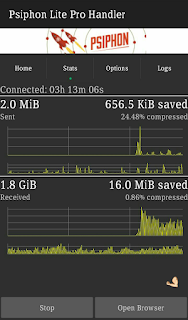
Rock MTN 0.0kobo Free Browsing Using Psiphon handler.
Wow!!  Today is Valentine, I wish all the fans of this blog and our blog readers a Happy Valentine's Day. Well I can say MTN is celebrating Valentine for us by not blocking the 0.0kobo free browsing that has been going on lately.

In my last post, I talked about how to use mtn 0.0kobo free browsing with Simple Android Server (SAS), I later realized that many people are not able to connect successful with SAS which was very absurd.

Due to this reason, am here again bringing to you how to rock Mtn free browsing using psiphon handler. Well, when we talk about psiphon we shouldn't forget to talk about the tremendous internet speed which makes this app rank high in the lists of VPN applications.  To enjoy this wonderful VPN application, follow the steps below.

How To Use MTN 0.0kobo Free Browsing With Psiphon Handler. 

1.  Download Psiphon Pro handler HERE
2.  Set your phone Apn to default  or create a new Apn with the following;

  • Apn : web.gprs.mtnnigeria.net
  • Proxy: 127.0.0.1
  • Port: 8080

3.  Now launch your Psiphon handler.
4.  Configure the first page as follows,

  • Proxy type : Real host
  • Proxy server : http://172.16.5.226@
  • Real proxy type : Inject
  • Real proxy port : 80
5.   Save it and swipe to the option tab.
6.   Under the Server region select United States.
7.   Now click on More Options and tick HTTP and configure the rest as follows;

  • Host address: 10.199.212.2
  • Port : 8080

8.   Now gently click on the start button, take a cup of tea as your psiphon connects.


Is this post helpful to you??  Or you have problem connecting??  Give us feedback through the comment box. 

Tuesday, February 9, 2016

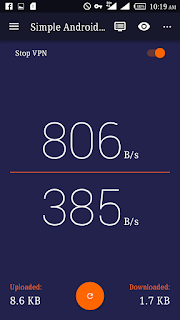
Browse Free With Mtn 0.0kobo Now Via SAS
Lately, free browsing tricks has been very scarce to the extent that more imei tweakers thought this is the end of free browsing. Am happy to tell you today that hope is not lost, most if you must have enjoyed Etisalat 0.0kobo free browsing, although it's slow, but it's better than nothing. Today am bringing to you Mtn 0.0kobo free browsing via SaS hacked version. This has been going for a while now and I think it's high time you know about it.

Requirements 


  1. Simple Server Cracked Version( SAS) . Click here to download it .
  2. A little Tech brain and exercise patience.

How To Use Mtn 0.0kobo Via SAS(Simple Server Android) .

  1. Create an APN address on your Phone with the following settings. 
APN: web.gprs.mtnnigeria.net. 
Proxy: Empty. 
Port: Empty.
2.  Now open your Simple Android Server v4.
3.  Goto the settings
4.  Click "Set connection mode" and select "VPN mode".
5.   Go back to connection settings and in the Proxy Host and Port input the following respectively.
Proxy Host : 10.199.212.2 
Proxy Port : 8080
6.  Now Tick "Enable Header Tweaking"
7.  In the Tweak Type Select "Host Replacement"
8.  In the Injection Host Input this : http://172.16.5.226@

Now Start your SAS and feel the incredible speed of SaS.

Wednesday, September 23, 2015

Etisalat Unlimited browsing and downloading via tweakware

I bet this is what you have been waiting for, surfing and downloading unlimitedly without any limit


 Today,  am very happy to tell you that what you have all been waiting for is finally here, with Etisalat chat pack unlimited browsing via Tweakware.

Now let's just quickly speed through the procedures on how to activate this unlimited browsing with Etisalat chat pack via tweakware.

Tweakware is an application that is one of the  best Android apps with VPN Servers, with unstoppable ip address,tweakware is another app like simple server and openvpn.

NOTE:

You must have activate your Etisalat with the chat Pack Then you can proceed to the next step, if you have not,then dail

*200*3*3*1*2*1# for 1week at #150

*200*3*3*1*1*1# for a day at #50

Procedures

- Go to Google playstore, search for Tweakware,  download it and install the app or download it HERE
- Go to your settings>network settings >access points name> then create a new access point, with the settings below
Name: Etisalat chatpack
Apn : etisalat
Then save it
-Now launch your Tweakware and press option on your Android and select settings
-The click on Bundled Setting and tick "Use Bundled setting"
Then click on Select Bundled setting and Choose ETI CHAT PACK.

-Then go back and Tap CONNECT .
And start surfing and downloading  Unlimitedly, it far more faster and better than other VPN apps.
 GREAT NEWS
1-No root access is needed for this
2-It powers all apps no need to use autoproxy 


Did you enjoy this post??

Like our Facebook page below

Enjoy more from Nigernote.blogspot.com

Monday, September 14, 2015

How to install MTK65XX Preloader USB VCom Drivers in Windows


Install MTK65XX Preloader USB Vcom Drivers for SP Flash Tools in Windows.

Generally many users face the problem of VCom drivers are not getting installed for their MediaTek device, we require VCom drivers usually when we flash firmware in our device with SP Flash Tools or any other similar tool.


Today i’m sharing this guide which will help you in installing MTK VCOM Drivers in your PC Manually.
This Guide works with Windows XP, Vista and Windows 7 Based Operating systems

How to install USB Vcom Driver:>

Step 1 :- Firstly Download MTK USB VCOM Drivers for your device model from Here

Step 2 :- Now open Device Manager in your PC by right clicking on My Computer and then click on Manage.

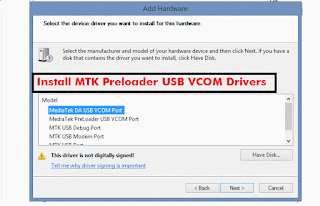
Step 3 :- Next go to Device Manager in that and click on your PC name and then click on Add legacy hardware, see below screenshot.


Step 4 :- Now in Add Hardware Wizard click on Next >> Install the Hardware that i manually select from a list (Advanced) >> Show All Devices >> Next >>Have a Disk >> Browse, Now select the any inf file from where you extracted the downloaded drivers.

Step 5 :- Now click on Next on the wizard to install the drivers and when promoted for security issue just click on install any anyway to finish the driver installation.

Step 6 :- That’s it after clicking on Finish Restart your PC and use your tool with VCOM Drivers.

If you face any problem then please comment below.

TUTORIAL: HOW TO UPGRADE YOUR INFINIX HOT NOTE AND HOT NOTE PRO TO LOLLIPOP 5.1 (0828) VERSION

Now without wasting much time on flashing the infinix hot note pro lollipop 0703 version,  you can head straight to flash the newest version(0828).

NOTE:
I won't be held responsible if you brick your phone due to not following the below instructions carefully. 

Now, let's do this together.

REQUIREMENTS

-A personal computer

-A good USB to phone cable. 
-SP Flash tool v5. Download Here
-Mediatek vcom driver. Download  Here and see guide installation guideHere
-Your downloaded lollipop update version 0828. See Here
-Make sure you are on infinix hot note pro stock recovery, if you are not, download it Here and flash it with mobile uncle. See guide Here
-Make sure you have fully unrooted your phone
Step by step procedure
1. Extract the lollipop update to a location of your choice on your Pc
2. Extract the SP Flash tool v5 also.
3. Switch off your phone and don't plug it in yet.
4. Open the SP Flashtool extracted, locate and double click on flashtool.exe
5. Go to scatter loading, browse to the infinix rom folder and select the scatter file. 

6. Next,  go to the Download only as seen in the picture below, click on it and select “firmware upgrade” from the drop-down.
7. Now click on the green arrow labelled “Download”. 
8. You can now plug in your switched off phone to your Pc.

9. Relax and wait for the Green check mark arrow as shown below. This may take about 4-7mins
10. After the check confirmation, close the flashtool, disconnect your phone and switch it on. First boot will take some few minutes 

11. That's all.
Kindly hit the comment box if you find this interesting or if you have any question. 
Infinix hot note and infinix hot  pro lollipop version  0911 update

Infinix mobility has been fulfilling their promises, infinix mobility  promise infinix hot note and note pro users official lollipop update last month, and they fulfilled their promise with rolling out d 0703,0813 & 0828 version of lollipop update and infinix are doing it again. The great news is that another lollipop update is available for both infinix hot note and infinix hot note pro user's, joyfully, it's available via OTA.


Android 5.1


Latest :

20150911:Official Version GM
1) Optimized Xwallpaper layout, added Gallery, Live Wallpaper entry, and Download category
2) Added Video player brightness and volume gesture control
3) Changed Recent key long press to Menu function
4) Optimized Camera's effect 
5) Fixed original image disappeared after edit issue
6) Fixed tone selection from file manager
7) Optimized and fixed other issues from XCLUB fans
8) Improved system stability and performance


Infinix hot note X551 16gb+1gb ram:


Latest 0911 full rom for those that are still on Kitkat download at the link below and flash using sp flash tools
http://adf.ly/1O5bak ( you can download it Via IDM )

For those already on lollipop version 0828 , update via OTA, but if you receive system update has stopped working download the update below, move it to SD card,  Boot into recovery and update from SD card
A_package_20150828_20150910.rar

http://adf.ly/1O5ubA

Infinix hot note pro X551 download from the link below 

Latest 0911 full rom for those that are still on Kitkat download at the link below and flash using sp flash tools 

http://adf.ly/1O5nQG

For those already on lollipop version 0828 , update via OTA, but if you receive system update has stopped working download the update below, move it to SD card,  Boot into recovery and update from SD card

BC_package_20150828_20150910.rar
http://adf.ly/1O5ugP 

NOTE : Sure your phone is not rooted to avoid bricking. 

Kindly hit the comment box below if you have any question. 

Saturday, September 12, 2015

How to reverse infinix hot note pro into stock recovery
As a result of the lollipop update that just rolled out, infinix hot note pro user's have been finding it very difficult to update their phone, due to them unable to flash back to stock recovery. So I decided to bring this quick guide on how to flash back your stock recovery, for those who have installed CWM Recovery.
Now let's get to business
Requirements 
- Mobile Uncle.
- Stock recovery. Download Here
- A little sharp brain

-After downloading the above recovery.Img, move the file to the root of your SD card.
-Now open your mobile uncle,
Go straight to Recovery Update. Click it and you will see the recovery there after d search is finished. Now click the recovery and select flash, after d flash is finished reboot your phone into recovery mode..  Yoola your have successfully install your stock recovery back.

If you are having any problems or questions regarding this, kindly hit the comments box for help. 

Friday, September 11, 2015

How to increase the volume of your Android phone, steps with images

I discovered lately that, most of the mobile user's especially Android users are tired of hearing that low sound coming out of their phones.  
Well am very happy to inform you Android users out there that there is finally a way to increase the volume of your Android phone.... 

Requirements

(1) Mobile Uncle Tools 

(2) A little sharp brain 

STEP 1

Add caption
Open your mobile uncle,  Click on Engineering Mode

STEP 2

Select Engineering Mode (MTK) 


STEP 3

Swipe to the left till you see AUDIO under HARDWARE TESTING 

STEP 4

Select AUDIO,  then select LOUDSPEAKER MODE

STEP 5

Now increase the VALUE  to 255,also the MAX VOL to 160, then click set and see the magic 


NOTE
You can change those digits if your volume is too loud, also you can apply this method for the HEADSET MODE as well... 

Tuesday, September 8, 2015

How to Root Infinix Hot Note & Hot Note Pro 5.1 Lollipop

This tutorial will be helpful for those who have updated Infinix Hot Note or Hot Note Pro to lollipop who want to root their device again.

I want to believe that you already have all the files so long you are running 5.1 Lollipop on your hot note or pro device.


Requirements
==>SP Flash tool
==>Recovery Image (download here)
==>Super User SU (download here)

Procedures
==>Copy and extract the downloaded YP recovery.rar   on your PC
==>Copy the SuperSU to your SD card
==>Open your SPFlash tool and click on Scatter loading
==>Locate where you extracted the recovery you downloaded earlier on your pc and load the scatter file
Choose download only (See image below for guide)


Click on download (wait for the process to complete)

==>Unplug your phone and boot into recovery by pressing Volume UP+ Power or VolDown+Power until you see Philz Touch Recovery.
==>Click Install Zip from SD CARD.
==>Install the UPDATE-SuperSU-V2.46.zip you placed on your sd card earlier.
==>Reboot System Now


Congratulations! Your device is now rooted. If you are still confuse, please use the comment box below.